

The landscape of software development has been revolutionized by artificial intelligence, with GitHub Copilot emerging as the most transformative coding assistant of our time. Serving over 50,000 companies and millions of developers worldwide, GitHub Copilot has fundamentally changed how we approach coding, increasing developer productivity by 25.1% and improving code quality by 40% according to recent Harvard research. This AI-powered programming assistant doesn’t just autocomplete code—it understands context, suggests entire functions, and serves as an intelligent pair programmer that adapts to your coding style.
GitHub Copilot represents more than automation; it’s about amplifying human creativity and problem-solving capabilities while handling repetitive tasks. Whether you’re a beginner learning your first programming language or an experienced developer tackling complex projects, mastering GitHub Copilot can dramatically accelerate your development workflow and free up mental bandwidth for strategic thinking and architectural decisions.
What is GitHub Copilot?

The AI-Powered Coding Revolution
GitHub Copilot is an AI coding assistant developed by GitHub in collaboration with OpenAI, leveraging advanced machine learning models to provide real-time code suggestions, explanations, and automated implementations directly within your development environment. Unlike simple autocomplete tools, Copilot understands context, programming patterns, and developer intent to generate meaningful code that aligns with your project’s requirements and coding style.
Built on OpenAI’s Codex model and enhanced with GPT-4 technology, Copilot has been trained on billions of lines of public code repositories, enabling it to understand and generate code across multiple programming languages including Python, JavaScript, TypeScript, Ruby, Go, C#, and C++. The platform excels at understanding natural language comments and translating them into functional code, making it particularly valuable for both experienced developers and those learning new technologies.
Core Capabilities and Features
GitHub Copilot offers a comprehensive suite of features designed to enhance every aspect of the development process. Code completion provides intelligent, context-aware suggestions that range from single lines to entire functions, while Copilot Chat offers conversational AI assistance for complex problem-solving and code explanation. The platform includes specialized tools like coding agents for autonomous development, multi-file editing capabilities, and integration with popular development environments.
Advanced features include next edit suggestions that predict your likely next changes, real-time debugging assistance, and automated test generation. Copilot can generate regular expressions, create documentation, explain complex code, and even suggest architectural improvements based on best practices learned from millions of repositories. The platform’s multimodal capabilities enable it to work with various input types, from natural language descriptions to existing code contexts.
Getting Started: Installation and Setup
Prerequisites and Requirements
Before installing GitHub Copilot, ensure you have the necessary prerequisites to maximize your experience. You’ll need a GitHub account with access to a Copilot plan, which can be the free tier for basic exploration or a paid subscription for full functionality. Supported development environments include Visual Studio Code, Visual Studio, JetBrains IDEs, Eclipse, Xcode, Vim/Neovim, and Azure Data Studio.
System requirements are minimal, as Copilot operates through cloud-based processing while integrating seamlessly with your local development environment. Ensure you have a stable internet connection for optimal performance, as Copilot requires real-time communication with GitHub’s AI servers for suggestion generation and chat functionality.
Installing GitHub Copilot in Visual Studio Code
Visual Studio Code represents the most popular platform for GitHub Copilot, offering the most comprehensive feature set and regular updates. The installation process is straightforward and can be completed in minutes:
Step 1: Open Visual Studio Code and navigate to the Extensions marketplace by clicking the Extensions icon in the Activity Bar or pressing Ctrl+Shift+X (Windows/Linux) or Cmd+Shift+X (Mac).
Step 2: Search for “GitHub Copilot” in the Extensions search bar and locate the official GitHub Copilot extension. Install both the main GitHub Copilot extension and the GitHub Copilot Chat extension for complete functionality.
Step 3: Sign in to GitHub when prompted after installation. Click “Sign in with GitHub” and authorize the extension through your browser. This process connects your VS Code installation with your GitHub account and validates your Copilot subscription.
Step 4: Configure settings by accessing Copilot preferences through the Command Palette (Ctrl+Shift+P or Cmd+Shift+P) and searching for “GitHub Copilot” settings. Customize suggestion frequency, enable/disable features, and set language preferences according to your workflow requirements.
Setting Up Copilot in JetBrains IDEs
JetBrains IDEs offer robust GitHub Copilot integration across their entire suite of development tools. The setup process varies slightly but follows consistent patterns:
Navigate to the Plugins marketplace within your JetBrains IDE (IntelliJ IDEA, PyCharm, WebStorm, etc.) and search for “GitHub Copilot”. Install the plugin and restart your IDE to activate the integration.
Sign in to GitHub through the plugin interface, which will open a browser window for authentication. Complete the authorization process and return to your IDE, where you should see Copilot icons indicating successful installation.
Configure plugin settings through the IDE preferences, enabling chat functionality and customizing suggestion behavior. JetBrains users benefit from deep IDE integration that respects existing keybindings and workflow patterns.
GitHub Copilot Pricing Plans
GitHub offers multiple Copilot plans designed for different user needs and organizational requirements. Understanding these options helps you select the appropriate tier for your specific situation:
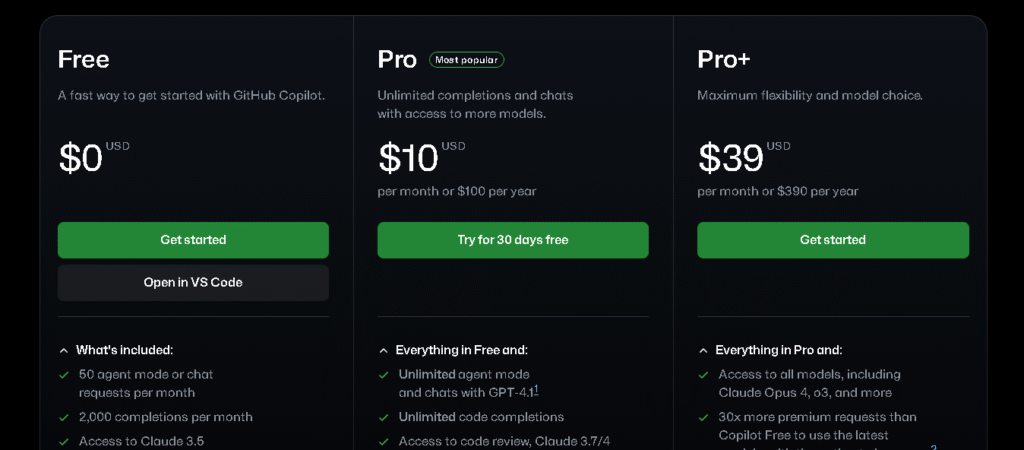
GitHub Copilot Pricing Plans and Features Comparison
GitHub Copilot Free provides an excellent starting point with 2,000 monthly code completions and 50 premium requests, allowing developers to explore Copilot’s capabilities without financial commitment. This plan is designed for personal use only and includes basic code suggestions and limited chat interactions.
GitHub Copilot Pro at $10/month offers unlimited code completions and 300 premium requests monthly, making it ideal for individual developers who want comprehensive AI assistance. The plan includes access to Copilot Chat, premium AI models, and early access to new features. Students, teachers, and maintainers of popular open-source projects may qualify for free Pro access.
GitHub Copilot Pro+ at $39/month targets AI power users requiring maximum flexibility and access to cutting-edge capabilities. This premium tier includes 1,500 monthly premium requests, full access to all available AI models, and priority access to advanced features like the latest GPT models and reasoning capabilities.
Mastering Code Completion
Understanding Copilot’s Suggestion System
GitHub Copilot’s code completion system represents a quantum leap beyond traditional autocomplete tools, utilizing sophisticated AI models to understand context, intent, and coding patterns. The system analyzes your current file, open files, and project structure to generate contextually appropriate suggestions that align with your coding style and project requirements.
Copilot suggestions appear as “ghost text” in gray coloring, indicating proposed code that you can accept, modify, or reject. The AI considers multiple factors including variable names, function signatures, comments, and surrounding code to generate suggestions that feel natural and intuitive. Advanced algorithms ensure suggestions maintain consistency with your existing codebase while following best practices and established patterns.
Effective Prompting Techniques
Successful Copilot usage depends heavily on effective prompting strategies that communicate your intent clearly to the AI system. The most effective prompts combine descriptive comments with meaningful function and variable names that provide context about your objectives and requirements.
Start with clear, descriptive comments that explain what you want to accomplish: // Create a function that validates email addresses using regex and returns boolean result. Follow this with meaningful function signatures and variable names that reinforce your intent: function validateEmail(emailAddress) {.
Provide examples and context when working with complex logic or domain-specific requirements. Include sample input and expected output in comments: // Example: validateEmail("user@example.com") should return true. This additional context helps Copilot generate more accurate and useful suggestions.
Advanced Code Generation Strategies
Advanced Copilot users leverage strategic techniques to maximize the quality and relevance of generated code. Break complex tasks into smaller, specific prompts rather than requesting large, monolithic functions. This approach enables more accurate generation and easier debugging when issues arise.
Use multiple open files to provide context about your project structure, APIs, and coding patterns. Copilot analyzes all open files to understand your project’s architecture and generate suggestions that integrate seamlessly with existing code. Close irrelevant files to focus Copilot’s attention on pertinent context.
Iterate and refine suggestions by accepting partial completions and building upon them. If Copilot’s first suggestion isn’t perfect, accept the useful portions and continue typing to guide the AI toward your desired outcome. This collaborative approach often produces better results than trying to generate perfect code in a single attempt.
Leveraging Copilot Chat for Advanced Assistance
Understanding Copilot Chat Capabilities
GitHub Copilot Chat transforms AI assistance from simple code completion to intelligent conversation about programming challenges, architectural decisions, and complex problem-solving. The chat interface provides context-aware assistance that understands your current codebase and can engage in multi-turn conversations about specific programming topics.
Copilot Chat excels at explaining complex code, suggesting improvements, generating tests, and providing debugging assistance. Unlike general-purpose AI chatbots, Copilot Chat is specifically trained for programming tasks and maintains context about your development environment, open files, and project structure throughout conversations.
Effective Chat Prompting Strategies
Successful Copilot Chat interactions require strategic prompting that provides sufficient context and clear objectives. Start with general descriptions and progressively add specific requirements: “I need a function that processes user data” followed by “The function should validate inputs, sanitize strings, and return structured objects”.
Provide examples and expected behaviors to guide Chat toward appropriate solutions. Include sample inputs, desired outputs, and edge cases that the solution should handle. Use natural language to describe complex requirements that might be difficult to express through code comments alone.
Reference specific files and functions using chat participants like @workspace in VS Code or @project in JetBrains IDEs. This enables Chat to analyze your existing codebase and provide suggestions that integrate seamlessly with your project architecture.
Specialized Chat Features and Skills
Copilot Chat includes specialized skills and commands that streamline common development tasks. Slash commands provide quick access to specific functionality: /explain for code explanations, /fix for bug resolution, and /tests for automated test generation.
Use chat participants to focus assistance on specific contexts. The @github participant enables access to repository information, issues, and documentation, while @workspace provides comprehensive project context for more accurate suggestions and recommendations.
Leverage Chat for code review and quality improvement. Ask Chat to analyze your code for potential issues, suggest performance optimizations, and recommend best practices based on industry standards and your project’s specific requirements.
Advanced Features and Productivity Techniques
Custom Instructions and Personalization
GitHub Copilot’s custom instructions feature enables personalized AI assistance that adapts to your coding style, preferences, and organizational requirements. Custom instructions provide persistent context that influences all Copilot interactions, ensuring consistent behavior across sessions and projects.
Effective custom instructions combine personal context with technical preferences. Include your role, preferred programming languages, coding standards, and common frameworks you work with. Example: “I’m a senior frontend developer specializing in React and TypeScript. I prefer functional components, strict TypeScript typing, and comprehensive error handling”.
Repository-specific instructions can be added through .github/copilot-instructions.md files that provide project-specific context. These instructions guide Copilot’s understanding of your project structure, coding standards, and domain-specific requirements without cluttering individual prompts.
Copilot Edits and Multi-File Operations
Copilot Edits represents a breakthrough in AI-assisted development, enabling comprehensive changes across multiple files through natural language instructions. This feature provides two operational modes: Edit mode for precise, controlled modifications and Agent mode for autonomous, comprehensive changes.
Edit mode offers granular control over proposed changes, allowing you to select specific files and review each modification before acceptance. This approach works well for targeted improvements and situations requiring human oversight throughout the process.
Agent mode provides autonomous development capabilities where Copilot independently determines necessary files, makes comprehensive changes, and iterates based on feedback. This mode excels for complex, multi-step tasks that require extensive coordination across project components.
Debugging and Code Analysis
GitHub Copilot’s debugging capabilities extend beyond simple error detection to include comprehensive code analysis and improvement suggestions. The platform can identify potential security vulnerabilities, performance bottlenecks, and code quality issues while suggesting specific remediation strategies.
Use Copilot Chat for systematic debugging by describing error symptoms and providing relevant code context. The AI can analyze stack traces, identify root causes, and suggest specific fixes based on common patterns and best practices from its training data.
Leverage Copilot for code explanation and documentation when working with unfamiliar codebases. Ask Chat to explain complex functions, architectural patterns, and design decisions to accelerate your understanding of existing systems.
Best Practices and Optimization Strategies
Writing Effective Prompts
Mastering prompt engineering is crucial for maximizing Copilot’s effectiveness across all interaction modes. The most successful prompts follow the CRAFT framework: Context, Role, Action, Format, Target. This structured approach ensures Copilot receives comprehensive information needed to generate accurate, useful responses.
Provide comprehensive context about your project, requirements, and constraints. Include relevant background information: “Building a REST API for e-commerce platform with Node.js and PostgreSQL” before requesting specific functionality.
Specify desired output format and style to ensure suggestions align with your project standards. Request specific patterns: “Generate TypeScript interfaces with JSDoc comments” or “Create Python functions following PEP 8 conventions”.
Code Quality and Security Considerations
While GitHub Copilot significantly accelerates development, maintaining code quality and security requires vigilant review of all AI-generated suggestions. Never accept code without understanding its functionality and implications for your project’s security and performance characteristics.
Use automated testing and code analysis tools to validate Copilot suggestions. Implement linting, security scanning, and comprehensive test suites that catch potential issues regardless of whether code originates from human developers or AI assistance.
Review Copilot suggestions for security vulnerabilities including SQL injection risks, authentication bypasses, and data validation issues. While Copilot includes built-in security filtering, comprehensive security review remains essential for production applications.
Collaborative Development and Team Integration
Successfully integrating GitHub Copilot into team workflows requires strategic planning and standardized practices that ensure consistency across team members. Establish team guidelines for Copilot usage including approved prompting strategies, code review requirements, and quality standards.
Create shared prompt libraries and coding standards that team members can reference for consistent AI assistance. Document effective prompting patterns and maintain templates for common development scenarios your team encounters regularly.
Implement code review processes that account for AI-generated code while maintaining quality standards. Train team members to identify AI-generated content and apply appropriate scrutiny during review processes.
Troubleshooting Common Issues
Installation and Authentication Problems
Common GitHub Copilot issues typically fall into three categories: connection problems, extension functionality issues, and authentication challenges. Connection problems often stem from network firewalls or VPN configurations that block access to GitHub’s AI service endpoints.
Resolve authentication issues by signing out and signing back into Copilot through your IDE. Ensure your GitHub account has active Copilot subscription and verify that your IDE extension is updated to the latest version.
Check GitHub’s Status page when experiencing widespread issues, as service outages occasionally affect Copilot functionality. Most authentication problems resolve through simple re-authentication or clearing cached credentials.
Performance and Suggestion Quality Issues
Poor suggestion quality often results from insufficient context or unclear prompting. Improve suggestion relevance by opening related files, providing detailed comments, and using descriptive variable names that communicate intent clearly.
Rate limiting can affect Copilot performance during high-usage periods or when using premium AI models. GitHub implements rate limits to ensure fair access across all users, with preview models like GPT-4o experiencing stricter limitations.
Address performance issues by closing irrelevant files, simplifying complex prompts, and ensuring stable internet connectivity. Most performance problems resolve through strategic context management and prompt optimization.
Extension and IDE-Specific Issues
IDE-specific problems often relate to plugin conflicts or configuration issues. Update your Copilot extension regularly as GitHub frequently releases improvements and bug fixes that enhance compatibility and functionality.
For JetBrains IDEs, ensure proper plugin installation and verify that GitHub authentication is properly configured. VS Code users should check extension dependencies and verify that both main Copilot and Copilot Chat extensions are installed and activated.
Collect diagnostic information using built-in tools when troubleshooting persistent issues. Most IDEs provide diagnostic commands that generate comprehensive logs for GitHub support or community assistance.
Future of GitHub Copilot
Emerging Technologies and Capabilities
GitHub Copilot continues evolving with regular updates that introduce advanced AI models, enhanced capabilities, and improved integration options. Recent developments include coding agents that can autonomously handle complex development tasks, multi-file editing capabilities, and integration with external tools through the Model Context Protocol.
Upcoming features include improved reasoning capabilities through advanced AI models like OpenAI’s o1 and enhanced multimodal understanding that processes visual inputs alongside code. These developments promise even more sophisticated assistance for complex architectural decisions and system design challenges.
GitHub’s investment in AI research ensures continuous improvement in suggestion quality, context understanding, and specialized domain knowledge. Future versions will likely include enhanced security analysis, architectural guidance, and project-specific customization that adapts to individual and organizational requirements.
Impact on Software Development
GitHub Copilot represents a fundamental shift in software development practices, transforming how developers approach problem-solving and code creation. Research consistently demonstrates productivity improvements of 25-40% across various programming tasks and experience levels.
The technology democratizes access to advanced programming knowledge, enabling developers to work with unfamiliar frameworks and implement complex algorithms without extensive research. This acceleration allows developers to focus on higher-level architectural decisions and creative problem-solving rather than routine implementation details.
Long-term impacts include changes in computer science education, software development methodologies, and the skills required for successful programming careers. Organizations adopting AI-assisted development report faster time-to-market, improved code quality, and enhanced developer satisfaction across their engineering teams.
Conclusion:
GitHub Copilot has fundamentally transformed the software development landscape, providing developers with an intelligent coding companion that enhances productivity, accelerates learning, and enables more sophisticated problem-solving. From basic code completion to advanced conversational assistance, Copilot offers a comprehensive suite of tools that adapt to your specific needs and development style.
Success with GitHub Copilot requires understanding both its capabilities and limitations while developing effective prompting strategies and maintaining appropriate code review practices. The most productive developers combine AI assistance with human creativity and critical thinking, using Copilot to handle routine tasks while focusing their mental energy on architectural decisions and complex problem-solving.
As AI technology continues advancing, early adoption and mastery of tools like GitHub Copilot provide significant competitive advantages in an increasingly complex software development environment. Whether you’re a beginner learning your first programming language or an experienced developer tackling enterprise-scale challenges, GitHub Copilot offers powerful capabilities that can accelerate your development workflow and enhance your coding effectiveness.
The future belongs to developers who successfully integrate AI assistance into their workflows while preserving the human elements of creativity, critical thinking, and strategic decision-making that define excellent software development. By mastering GitHub Copilot’s comprehensive feature set and following the best practices outlined in this tutorial, you’ll be well-positioned to leverage AI technology for enhanced productivity and continued professional growth in the evolving world of software development.